 Selling Your Phone Made Easy—Express Shipping Covered for Free!
 Canstar Blue Award Winner 2024 - Best Rated Trade-In Company
 4000+ Google Reviews









How Do You Know If Your Phone Is Network Locked?
A network-locked phone can catch you out when changing providers, travelling, or selling an old handset in Australia. The quickest check is simple: insert an active SIM from another mobile provider and see whether the phone connects normally. If it works, the handset is generally unlocked. If you see messages about an unsupported or invalid SIM, a network restriction may still be active.
There are a few other ways to confirm the result. iPhone users can check a built-in setting while Android owners may need a different approach depending on the brand.
Quick Answer
To check whether your phone is network locked, try an active SIM from another Australian provider. Restart the handset and wait for it to connect. If the new network appears and calls or mobile data work, the phone is usually unlocked. On an iPhone, you can also open Settings > General > About and look beside Service Provider Lock. “No SIM restrictions” means the iPhone is unlocked.
What Does Network Locked Mean on a Phone?
A network lock restricts a phone to one mobile provider. For example, a handset locked to one carrier may reject a SIM from another carrier even when that SIM is active and compatible.
The restriction sits on the handset rather than your mobile plan. That difference matters because cancelling a plan doesn’t automatically prove the phone can use another provider. Likewise, moving your number to a new service doesn’t remove a handset restriction by itself.
These terms sound similar, yet they protect or restrict different things.
- Network or carrier lock: Limits the handset to a particular mobile provider.
- SIM PIN: Protects the physical SIM or mobile service from unauthorised use.
- Screen lock: Protects phone access using a PIN, password, pattern, or biometrics.
- Activation lock: Connects the device with an owner account, such as an Apple ID.
That distinction saves confusion. A phone can be network unlocked yet still carry an activation lock.
How Do You Know If Your Phone Is Network Locked
The most reliable check depends on your device. However, testing a working SIM from another provider gives most people a clear practical answer.
Before testing, make sure the second SIM actually works. Otherwise, a faulty or inactive SIM can send you down the wrong track.
Method 1: Insert a SIM From Another Network
This test works well because it checks the restriction during normal use. Telstra also recommends using another provider’s SIM when checking whether a handset is locked.
Follow these steps:
- Turn the phone off.
- Remove the current SIM card.
- Insert an active SIM from another provider.
- Turn the phone back on.
- Wait a few minutes for network registration.
- Check whether the new provider appears.
- Make a call or test mobile data.
If everything works, the phone is generally network unlocked. That includes seeing the new provider, getting signals, and using normal mobile services.
A locked handset may instead display a message asking for a valid SIM or network unlock code. Some models use wording such as “SIM not supported” or “Invalid SIM.”
Don’t rely on signal bars alone. Test a call or mobile data for a stronger answer.
Method 2: Check Network Lock Status on an iPhone
Apple gives iPhone users a handy built-in check. That saves hunting through provider menus or borrowing someone else’s SIM.
Open:
Settings > General > About
Then scroll to Service Provider Lock. If you see “No SIM restrictions”, your iPhone is unlocked.
If that wording doesn’t appear, contact the relevant provider for confirmation. Apple also states that only the service provider can remove its network restriction.
This check is especially useful before creating a sell order. Once everything looks clear, you can sell your iPhone through Mobile Guru and check its current value.
Method 3: Check an Android Phone for Network Restrictions
Android is a little messier because brands don’t use one universal menu. Samsung, Google Pixel, Motorola, and other manufacturers can label SIM and network settings differently.
Start by checking Settings for sections named Connections, Network & internet, SIMs, or Mobile network. These areas can reveal your active network and SIM status. However, they don’t always display a simple unlocked or locked result.
That’s why the second-SIM test remains useful on Android. Samsung Australia also recommends inserting a SIM and testing normal phone service when checking whether a handset is locked.
Google notes that Pixel phones can arrive SIM-locked or SIM-unlocked depending on where they were purchased. Phones sold directly through the Google Store come unlocked while carrier-supplied devices may follow different arrangements.
Method 4: Ask Your Mobile Provider
Still unsure? Your original provider can usually confirm whether a network restriction exists.
Before contacting them, have your phone’s make, model, and IMEI ready. The IMEI identifies the handset and helps providers check device records.
You can often find the IMEI by dialling *#06#. It also appears within device settings on many phones. On an iPhone, open Settings > General > About and look for the IMEI entry.
Telstra asks for the IMEI when handling network-lock enquiries. Optus also requires an IMEI for its device unlocking process.
For a second-hand phone, carrier confirmation can be especially useful when its purchase history is unclear.
Once you’ve confirmed the phone is unlocked, the next step is preparing it properly for sale. Knowing how to sell your phone online in Australia can help you organise the device, remove personal data, and avoid unnecessary delays during the selling process.
What Does a Network-Locked Phone Usually Show?
A locked phone often gives you a clue when another provider’s SIM appears. The exact wording varies between manufacturers, models, and software versions.
Common signs include:
- a “SIM not supported” message;
- an “Invalid SIM” warning;
- a request for a network unlock code;
- normal service with the original provider but not another provider;
- inability to call, text, or use mobile data with the replacement SIM.
Telstra says a network-locked handset may display an error requesting a valid SIM. Apple also documents unsupported-SIM alerts when an iPhone can’t use the inserted service provider SIM.
Still, one failed test isn’t enough to diagnose the problem confidently. A dead SIM, poor coverage, incompatible network bands, or account issue can create similar symptoms.
For example, suppose your mate’s SIM works perfectly in their phone but fails immediately in yours. If your original SIM still works normally, a network restriction becomes a stronger possibility.
However, when neither SIM works properly, the problem may sit somewhere else entirely.
Does “No Service” Mean Your Phone Is Network Locked
Not necessarily. “No Service” only tells you the phone isn’t connected to a mobile network at that moment. It doesn’t identify the cause.
Several problems can produce the same result:
- weak coverage or a temporary network outage;
- an inactive, damaged, or incorrectly inserted SIM;
- eSIM activation problems;
- account or provisioning issues;
- incorrect network settings;
- incompatible mobile network technology;
- a blocked or barred handset;
- hardware problems involving the antenna or SIM reader.
Apple’s Australian support guidance makes this distinction clear. When an iPhone displays “No Service” or “Searching,” Apple recommends checking coverage, account status, device blocking, SIM condition, provider settings, and possible hardware issues.
A simple comparison test helps narrow things down. Put the suspect SIM into another compatible handset. Then try a known-working SIM inside your phone.
Those two checks can show whether the problem follows the SIM. Alternatively, the fault may remain with the handset.
Also consider Australian network compatibility before blaming a carrier lock. An imported phone may support different network bands or network features. That doesn’t automatically make the handset network locked.
The same caution applies to older devices. A phone struggling after network changes may face compatibility limitations rather than a carrier restriction.
So, don’t treat “No Service” like a smoking gun. Check the SIM, network, account, and handset before drawing conclusions.
Should You Unlock Your Phone Before Selling It?
Yes, clearing network restrictions before selling makes the handover much smoother. A buyer expects to use a compatible Australian provider without discovering an old carrier lock afterwards.
It can also prevent problems during a trade-in assessment. A network lock differs from cosmetic condition, battery health, or storage capacity. However, it may still determine whether a selling service accepts the handset.
Mobile Guru’s current Sell Site terms specifically require phones and devices to be free from network locks. The terms also require devices to be signed out of associated accounts and free from activation locks.
That means checking both types of restrictions matters before posting your phone. Removing only the screen PIN isn’t enough.
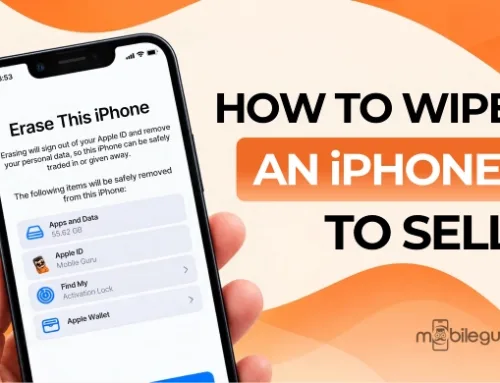
Before selling your phone, back up anything important and remove your personal accounts. Then complete the appropriate factory reset after signing out correctly. Keep the SIM card with you unless the receiving service specifically requests otherwise.
If you’re selling through Mobile Guru, you can start with an instant online quote based on the device model, storage, and condition. Mobile Guru currently provides free Australia Post Express shipping and generally processes payment within 24 hours after inspection.
A clean handover saves headaches and prepares the phone for proper assessment and reuse.